AI-enabled server-side localization tool for webmasters and developers
Manage multilingual content directly on your server. Scale your reach instantly with AI-powered translations that eliminate hours of manual labor.
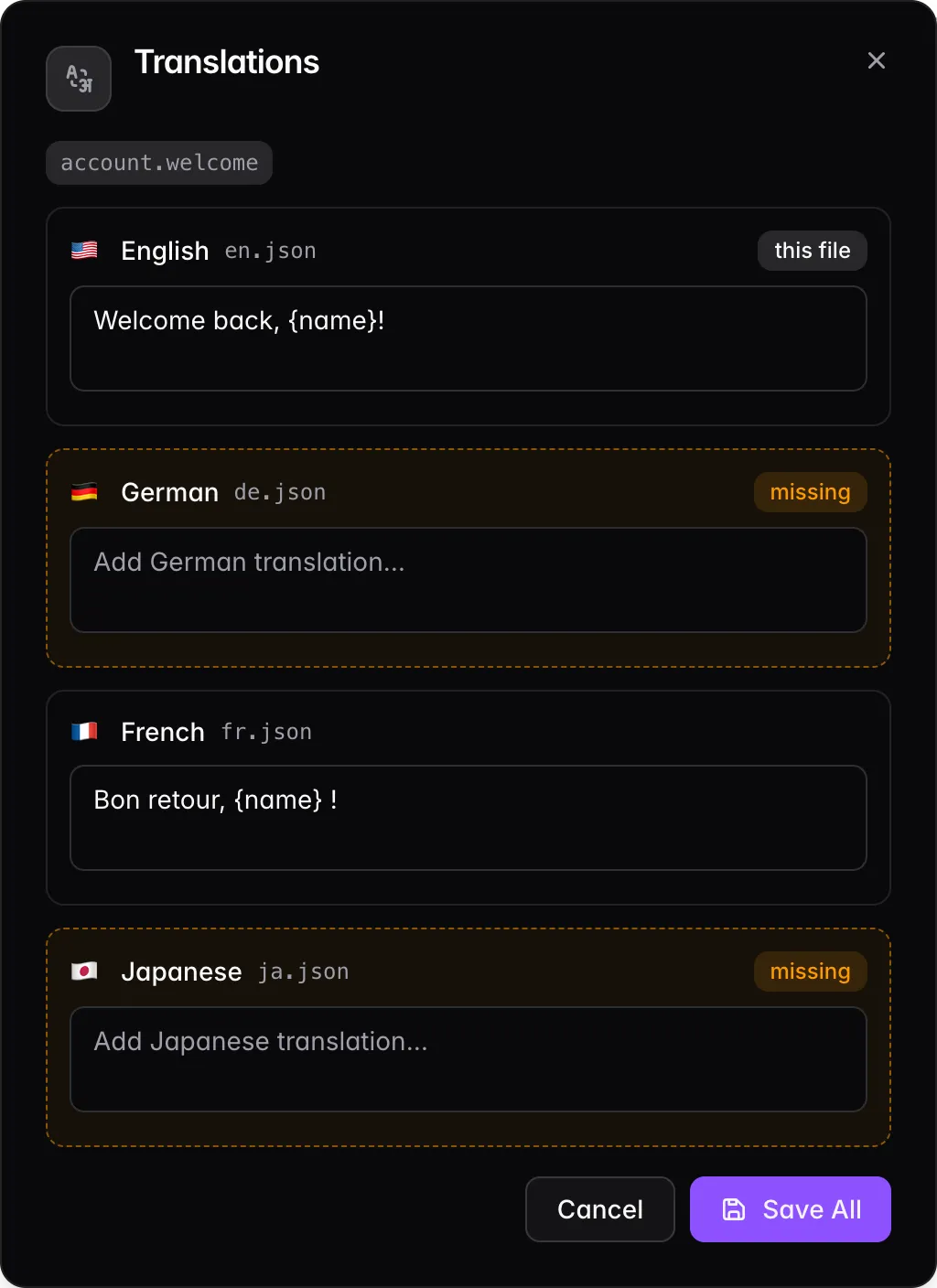
Features
Instant Localization. Zero Manual Effort.
Complex Structures, Simplified.
Lifetime License & Unlimited Projects
Place Order
One-time payment of $97.00 - lifetime license & unlimited projects!
Enter Your Details
We'll send a verification code to your email
Installation Instructions
Set up LocaleBit on your server in just a few simple steps.
1
Prepare the Files
Upload the downloaded archive (localebit-x.y.z.zip) to your Docker-enabled host and extract it:
# Unzip the package
unzip localebit-x.y.z.zip

# Navigate into the directory
cd localebit-x.y.z
2
Configuration
Rename the example environment file and update the configuration settings:
mv .env.example .env Open the .env file with your preferred text editor (e.g., nano, vi, or vim) and configure the following variables:
NUXT_TRANSLATION_PATH=/path/to/translations/folder
NUXT_APP_PASSWORD=123456
NUXT_APP_PORT=3000
NUXT_SESSION_PASSWORD=your-super-secure-32-character-password
Permissions Check: Pay special attention to the
NUXT_TRANSLATION_PATH. This directory must be writable by the Docker container. If permissions are incorrect, the container will create an empty folder in the project root instead of accessing your translation files. 3
Start the Container
Once configured, launch the application using Docker Compose:
docker compose up -dSummary of Environment Variables
| Variable | Description |
|---|---|
| NUXT_TRANSLATION_PATH | The absolute path to your JSON translation files. |
| NUXT_APP_PASSWORD | The password for the application dashboard. |
| NUXT_APP_PORT | The port on which the app will run. |
| NUXT_SESSION_PASSWORD | A secure, 32-character string used for session security. |